
eDrawings
SolidWorksProductivity
2.5314.00 Reviews
- Version
- 34.2.0057
- Installs
- 100.00K
- Age Rating
- Everyone
Screenshots
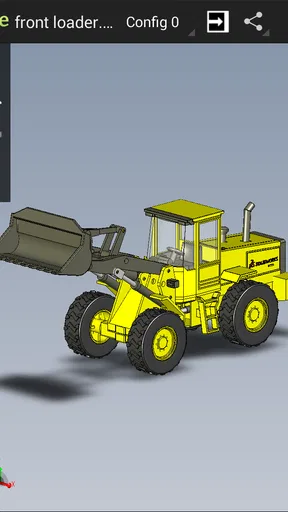
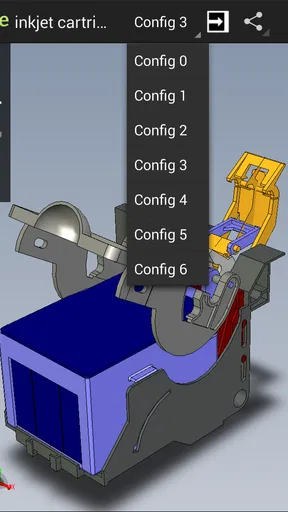
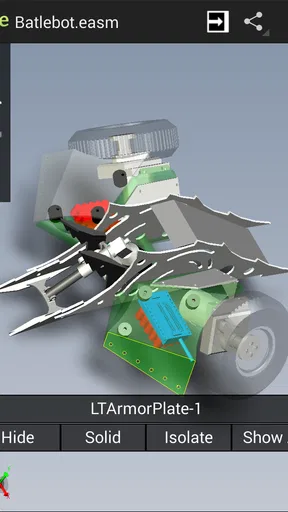
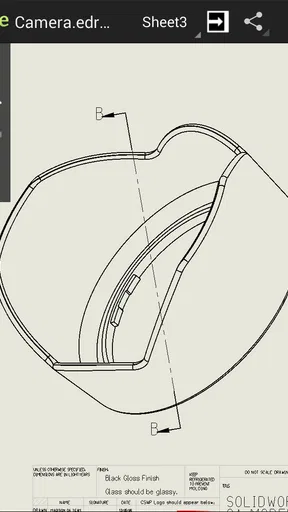
Our Review of eDrawings
 Analysis by Appyee
For anyone who needs to inspect a CAD drawing away from a workstation, a phone can be a useful second screen—but only if the viewer fits the files and the decisions at hand. eDrawings is a paid productivity app from SolidWorks, and I see its best role as a portable companion for checking designs, not as a replacement for desktop CAD software. That distinction matters: viewing a model and deciding whether it needs a closer engineering review are very different jobs.
What to consider before choosing a mobile CAD viewer
I would start by asking what you need to do with a drawing on your phone. If the goal is to look at a design, orient yourself, and discuss a visible detail, a dedicated viewer can be more practical than carrying a laptop. If you need to create geometry, make precise edits, or validate a design, a mobile viewer is the wrong category of tool; I would return to a full CAD application instead.
The other decision is file compatibility. A viewer is only useful when the person sending a design can provide something it opens correctly. Confirm the format with a real project file before relying on any mobile app for a meeting or site visit. The app’s name points to SolidWorks, and the developer is SolidWorks, so I would particularly consider it when SolidWorks designs are part of the workflow rather than assume it will suit every CAD exchange.
There is also a practical difference between a quick inspection and a review that must become part of the project record. Looking at a model on a phone can help me spot what to ask about, but small controls and a compact screen make it a poor place for detailed verification. I treat mobile viewing as a way to prepare a better conversation, not as proof that a design is correct.
Getting Started with eDrawings
First things first, downloading and setting up eDrawings is a breeze. Available for both Android and iOS, the app is a lightweight addition to your device. Once installed, you’re greeted with a clean, intuitive interface that doesn’t overwhelm you with too many buttons or options. Just how I like it.
The app is a paid download at $1.99, with in-app purchases listed at $7.99 per item. Its age rating is Everyone, and the release date is Aug 11, 2013. The current version is 34.2.0057, and it requires OS 10 or later. Those details make the purchase decision worth a little care: I would check that the app’s supported version and the files I need match my device before making it part of a work routine.
The app supports a wide range of file types, including DWG, DXF, and even SolidWorks formats. So, whether you’re an engineer, designer, or just someone who needs to peek at a drawing, eDrawings has got you covered. It’s perfect for those quick checks when you’re away from your workstation.
The User Experience
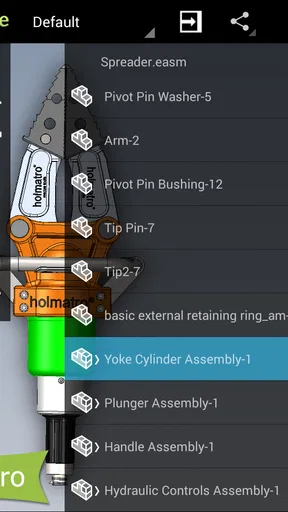
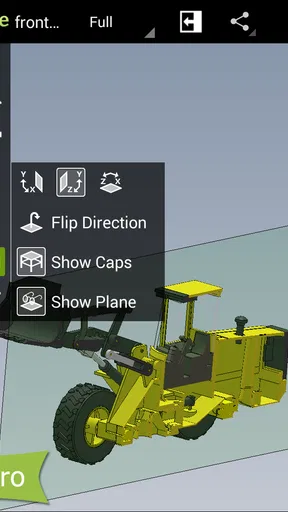
Now, let's dive into the real deal—the user experience. When you open a file, you’re presented with a range of viewing options. You can zoom in and out, rotate, and even explode assemblies with a simple pinch or swipe. It’s incredibly responsive and smooth, which is crucial for examining intricate details in technical drawings.
For a useful first test, I would open a familiar assembly rather than an unfamiliar sample. Rotate it to understand its orientation, then use the explode view to see how the parts relate spatially. That sequence can answer a practical question—what sits behind a cover, or which component is adjacent to a fitting—without pretending that a phone is a precision measuring instrument. If the view becomes crowded, zooming in on one area at a time is usually more helpful than trying to interpret the entire assembly at once.
One feature that stood out to me is the ability to create markups. Imagine being able to jot down notes or highlight areas of concern directly on the drawing. It’s a game-changer for collaborative efforts, especially when you want to communicate changes without a ton of back-and-forth emails.
My advice is to make each markup actionable: identify the area and say what needs checking, rather than leaving a vague mark that a colleague must interpret. A screenshot or annotation can point someone to a concern, but it does not replace a formal change request or a careful review in the authoring tool. That boundary keeps a quick mobile comment useful instead of letting it be mistaken for design approval.
Sharing and Collaboration
Sharing files is straightforward. You can export your marked-up drawings and send them via email or other channels. This makes it easy to keep everyone in the loop, whether they have the app or not. Plus, the app’s compatibility with cloud services like Google Drive and Dropbox means your files are always within reach.
A realistic use is a designer receiving a question while away from the office: open the shared drawing, inspect the relevant assembly, add a concise note, and send the annotated version back so the team can continue the discussion. Before doing that, I would check that the recipient can open the exported result and that the markup is visible in the channel being used. A review workflow is only smooth when the comment survives the handoff and the other person knows which drawing it refers to.
For a group that already relies on a shared project folder, keeping the source file there and sending a marked-up copy can help avoid confusion about which version is being discussed. I would avoid treating a message attachment as the new master design: annotations communicate feedback, while the original CAD file remains the reference for edits. This simple separation is especially helpful when several people are commenting from different devices.
Collaboration is seamless. You can share your thoughts and annotations with team members, making project management more efficient. It’s like having a virtual conference room where everyone can gather around a digital blueprint.
Performance and Reliability
Performance-wise, eDrawings is impressive. The app runs smoothly without any noticeable lag, even when handling large files. It doesn’t drain your battery excessively, which is a huge plus if you’re often on the move.
I did encounter a couple of crashes, but they were rare and didn’t really hinder my overall experience. The app seems to handle updates well, constantly improving with user feedback, which is always a good sign.
For a dependable field routine, I would open the exact drawing before leaving a reliable connection, rather than discovering during a visit that I need to locate or load it at the last minute. I would also keep the file name and revision clear when sharing comments; even a good viewer cannot prevent a team from talking about different versions. These small habits matter more than a smooth gesture response when a discussion has a real deadline.
When another kind of tool makes more sense
Compared with a general-purpose file viewer, a CAD-focused app is the more natural choice when the important task is exploring a technical model rather than simply opening a document. The ability to rotate an assembly and separate its components gives a mobile review a different purpose from reading a static page. On the other hand, if all I need is to read a two-dimensional drawing as a document, a basic PDF reader may be simpler—provided the drawing has been exported to that format and no model interaction is needed.
Compared with desktop CAD software, the trade-off is clear: the phone is easier to carry and useful for discussion, while the workstation is better suited to careful editing and formal checks. I would not choose this app as my sole tool for creating designs. Nor would I ask a teammate to buy it just to view one occasional image if a suitable exported document already answers the question.
The audience numbers offer a modest signal, not a guarantee of fit: the app has over 100,000 installs, an average rating of 2.5 from around 2,800 ratings, and 314 written reviews. I would take that mixed rating as a reason to test my own workflow rather than assume it will behave perfectly on every device or with every file. A short trial using the drawings I actually receive is more useful than relying on popularity alone.
Who should pay, and what switching involves
I think the strongest case is for engineers, designers, technicians, and clients who repeatedly need to inspect SolidWorks-related designs while away from a computer. For them, the purchase price may be reasonable if it saves a trip back to a desk or makes a quick discussion easier. Hobbyists who occasionally receive a model may also find it handy, but should first decide whether interactive viewing is valuable enough to justify installing a dedicated app.
Switching from a desktop-only routine does not mean moving the design process onto a phone. It means adding a convenient review step: receive a file, inspect it, make a focused annotation, and pass that comment to the person responsible for the source design. I would preserve the existing desktop process for edits and final checks, so adopting a mobile viewer does not create two competing places where design changes might be made.
If you are comparing it with other mobile CAD viewers, focus less on broad claims and more on a few concrete questions: does it open the formats your team sends, can you navigate the assemblies you care about, and can your colleagues use the comments you share? I would test those points with a small, representative file before depending on the app for a time-sensitive review. A clean result on one simple drawing is not enough if your everyday work involves complex assemblies.
My recommendation
So, is eDrawings worth your time? Absolutely. It’s a practical tool for anyone who needs to access and share CAD files on-the-go. The blend of functionality and ease-of-use makes it a must-have for professionals and hobbyists alike.
I would soften that recommendation for anyone expecting a full design environment or a flawless substitute for desktop review. Its best value is narrower and more believable: quick access to a technical model, a better grasp of how parts fit together, and a way to send a clear observation when you are away from your workstation. The paid download makes most sense when those moments happen often enough to matter.
If you’re looking for a reliable app to simplify your workflow and enhance collaboration, give eDrawings a shot. It’s like having a mini CAD station in your pocket, ready to spring into action whenever you need it. Just download, explore, and let the app do the rest. Happy drawing!
Verdict
Strengths of eDrawings
- User-friendly interface for beginners.
- Supports multiple file formats.
- Real-time collaboration features.
- High-quality 3D visualization.
- Cross-platform compatibility.
Limitations of eDrawings
- Limited advanced design tools.
- Occasional lag with large files.
- Subscription can be pricey.
- Some features require login.
- Limited offline functionality.
Similar Picks in This Category
View All
Google Calendar
Google LLC4.6

Google Drive
Google LLC4.3

Google Assistant
Google LLC3.9

Microsoft OneDrive
Microsoft Corporation4.6

Samsung Calendar
Samsung Electronics Co., Ltd.4.1

Microsoft OneNote: Save Notes
Microsoft Corporation4.6
Frequently Asked Questions
What is eDrawings, and what are its main features?
eDrawings is a powerful CAD viewer designed for both Android and iOS devices, allowing users to view, share, and collaborate on 2D and 3D designs. It supports various file formats, including SolidWorks and AutoCAD, and offers features like markups, measurements, and easy sharing options. This makes it ideal for engineers, designers, and project managers.
Is eDrawings suitable for professional use?
Yes, eDrawings is highly suitable for professional environments. It provides robust tools for reviewing and annotating CAD files, and its compatibility with industry-standard formats makes it indispensable for professionals. The app's ability to handle complex files smoothly adds to its appeal for those in engineering and design fields.
How user-friendly is the eDrawings interface?
The eDrawings app offers a user-friendly interface that is intuitive for both beginners and seasoned CAD users. With clear navigation and responsive controls, users can easily zoom, pan, and rotate models. The clean layout ensures that tools and features are accessible, making the viewing and collaboration process seamless.
What are the limitations of eDrawings?
While eDrawings is feature-rich, it does have some limitations. File size restrictions may hinder the viewing of extremely large models on older devices. Additionally, some advanced editing features found in full CAD software are not available, as eDrawings focuses primarily on viewing and minor annotations rather than full-scale design editing.
Is eDrawings a free app, or are there costs involved?
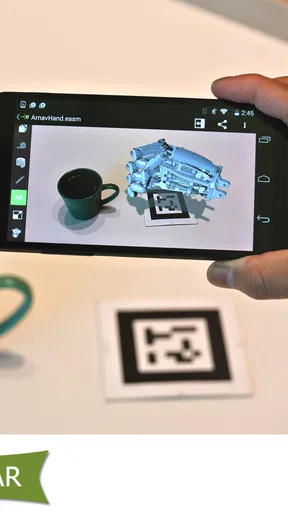
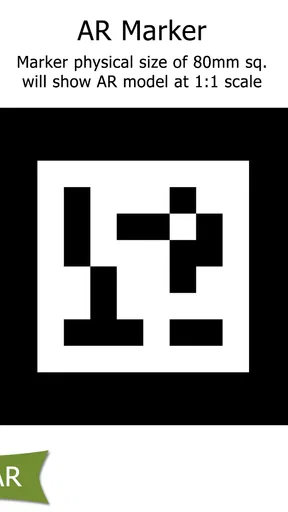
eDrawings offers both a free version and a premium version with additional features. The free version provides basic viewing capabilities, while the paid version unlocks advanced tools such as markup, measurement, and augmented reality. Pricing details can vary, so it's advisable to check the app store for the latest information.
